




This guide will help you get the most out of the myPrevent portal—whether you’re logging in for the first time or looking to optimize your experience. Learn how to log in, navigate your dashboard, manage account settings, and place orders.
Log in to Your Account
If you already have an account, visit the portal landing page and click Log In. Enter your email and password. Use the Forgot Password link to reset your password.
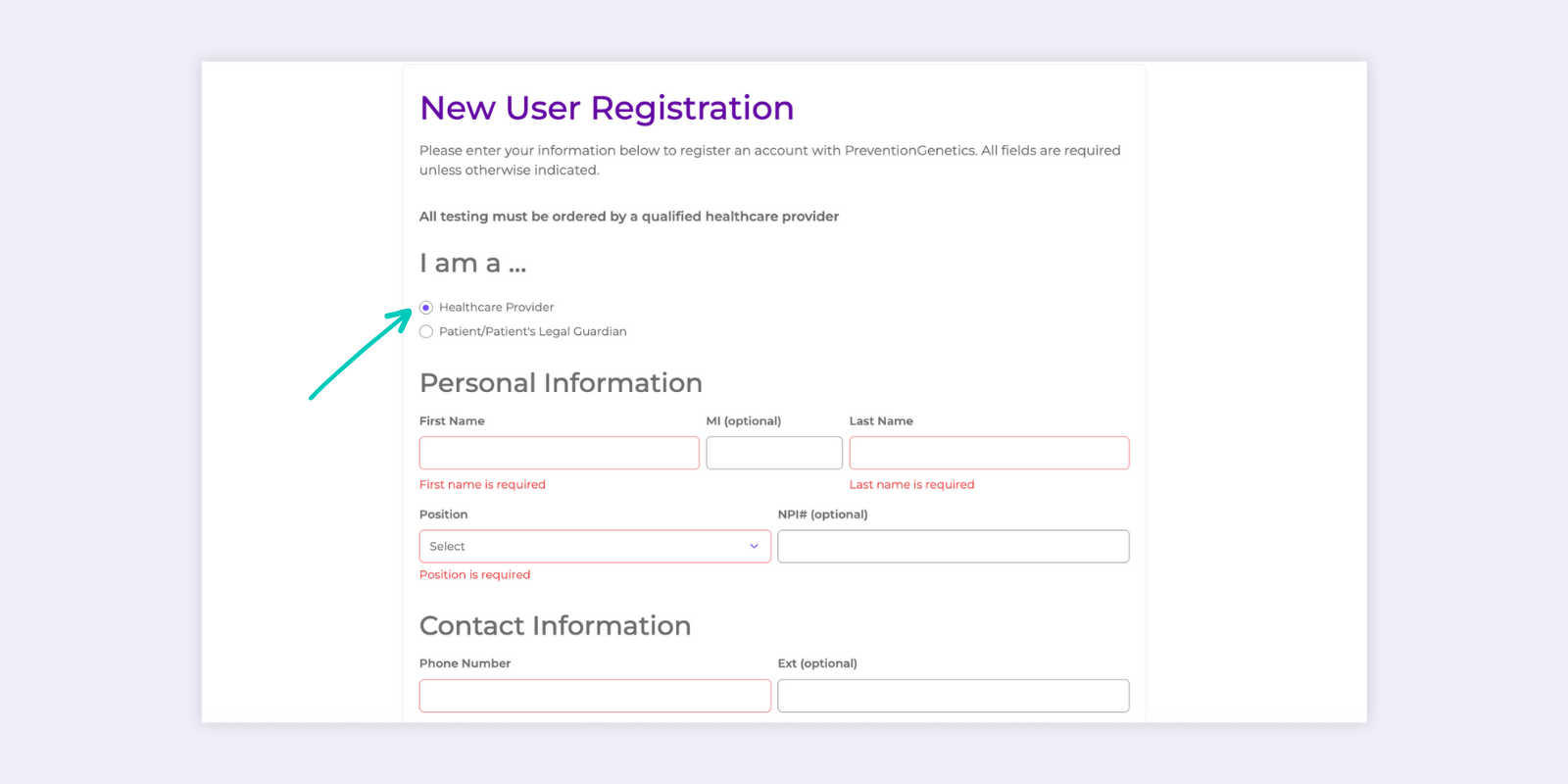
If you haven’t registered yet, start by clicking Sign Up.
- The default role is now Healthcare Provider.
- Fill in all required fields; optional fields are clearly labeled.
Once you submit, you’ll receive a confirmation code via email. Enter it to complete registration.
Tip: If you don’t receive an expected email, ask your IT team to whitelist email reports@preventiongenetics.com.
If you don’t receive a registration email, you may already have an account. Try logging in with another email address. For persistent issues, email support@preventiongenetics.com for assistance.

Explore Your Dashboard
The Unread Reports section shows recent reports. Once downloaded, they will be removed form this section but can still be found in the Completed tab.
View recent Team Support activity on the dashboard. Selecting Support Tickets in the upper right will take you to all the support tickets for your account.
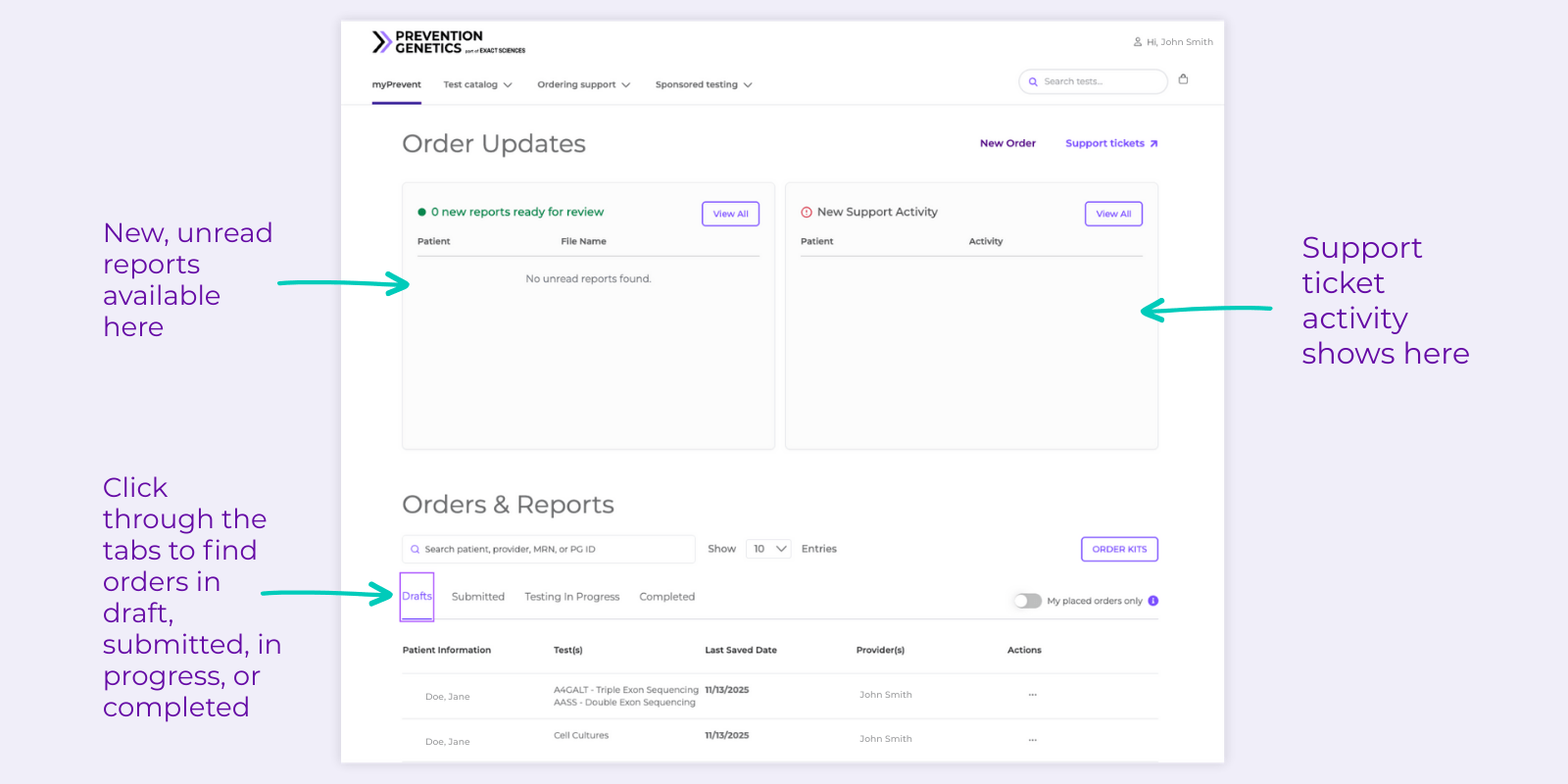
Your dashboard organizes orders and reports into clear statuses:
- Drafts: Incomplete orders. Select Continue & Complete from the 3 dots at the end of the row to fill out remaining information and submit.
- Submitted: Order placed, but sample not yet received (order still editable). Kit orders viewable as a link.
- Testing in Progress: Sample received and testing has begun; viewing or editing the order unavailable.
- Completed: Report ready for download from the Report Ready Date column.
Use the Toggle to filter your reports or include colleagues’ reports.
Use the search bar to search the orders by status in your dashboard. The bar searches within each tab, so you can use it to search within each type of order.
Manage Account Settings
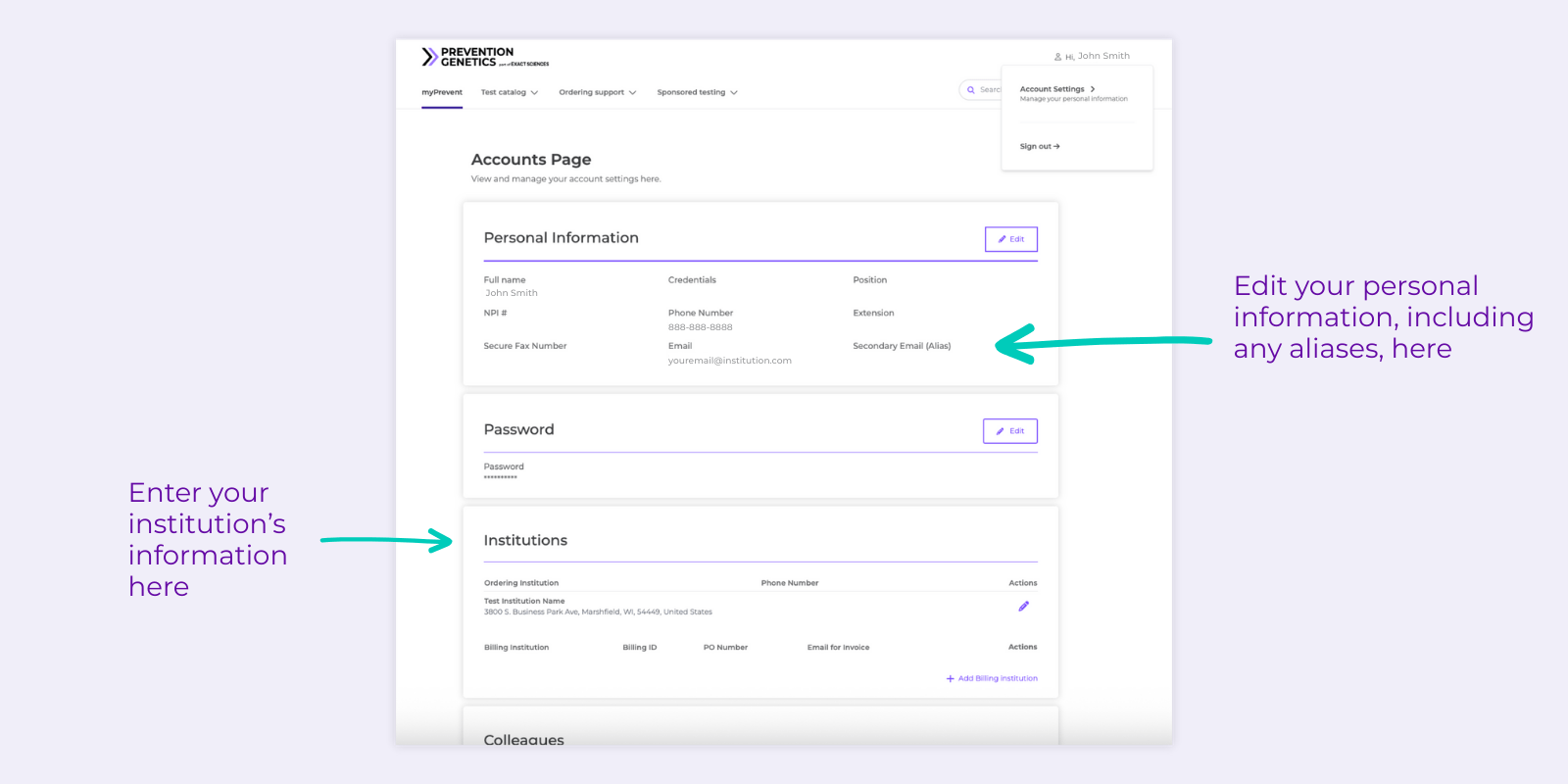
Access settings from the top-right menu under your name.
- Personal Information: Manage email, add aliases, and update contact information.
- Institutions: Includes Ordering Institution and Billing Institution. Add and set a default for auto-fill during orders.
- Ordering Institution: Limited to one Ordering Institution per account.
- Billing Institution: Add multiple Billing Institutions and choose a default, which will auto-fill when using Institutional billing.
- Colleagues: Add colleagues manually to share orders and reports.
- Added colleagues are notified by email and prompted to accept the request.
- After they accept, switch the Share All Orders slider to green for that colleague. Their dashboard will then include your orders and reports.
- Select Request Access to ask them to share all orders with you—this sends them an email.


Place and Manage Orders
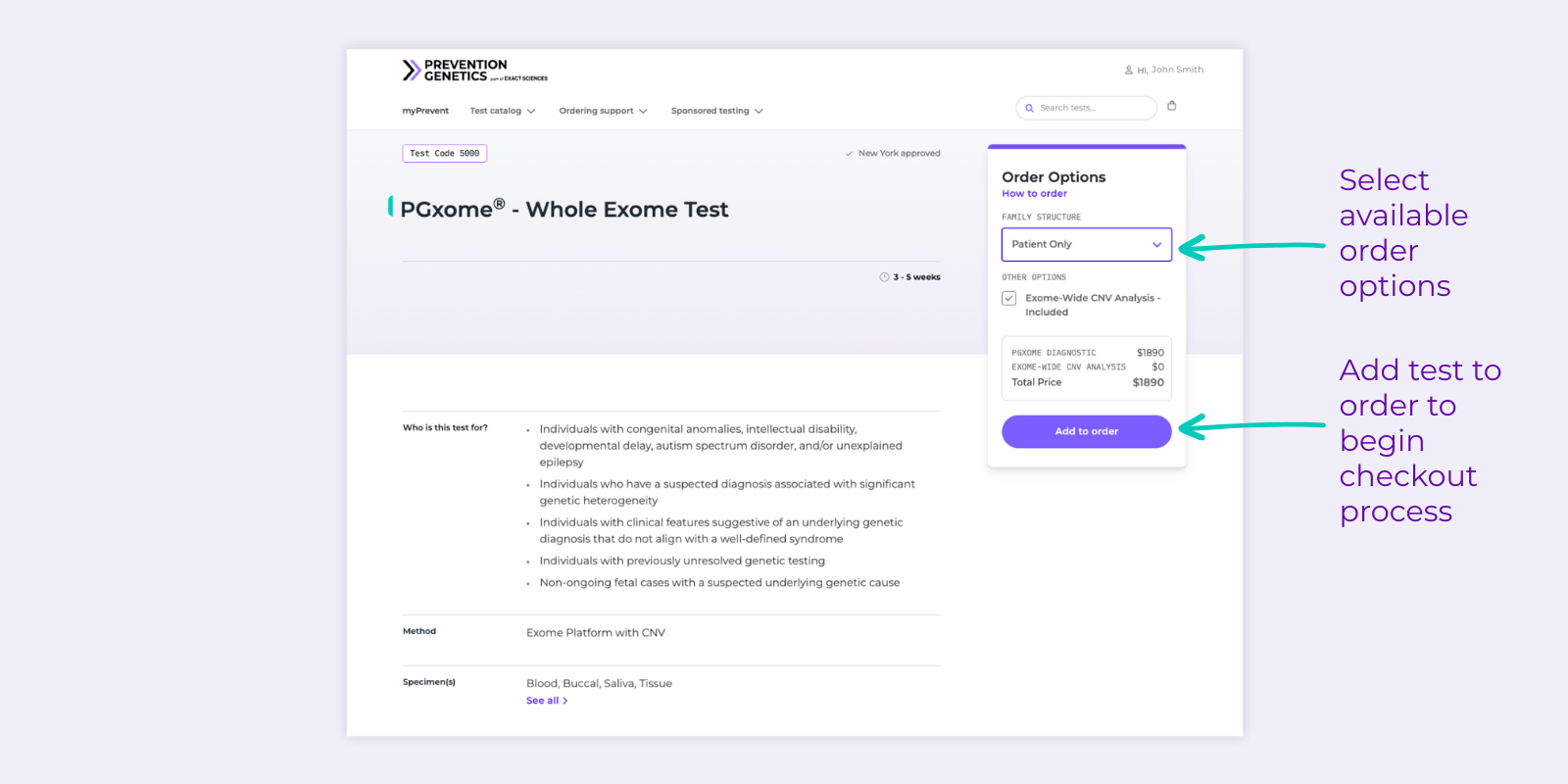
Click New Order to begin.
- At least one test is required.
- Add multiple tests and remove as needed.
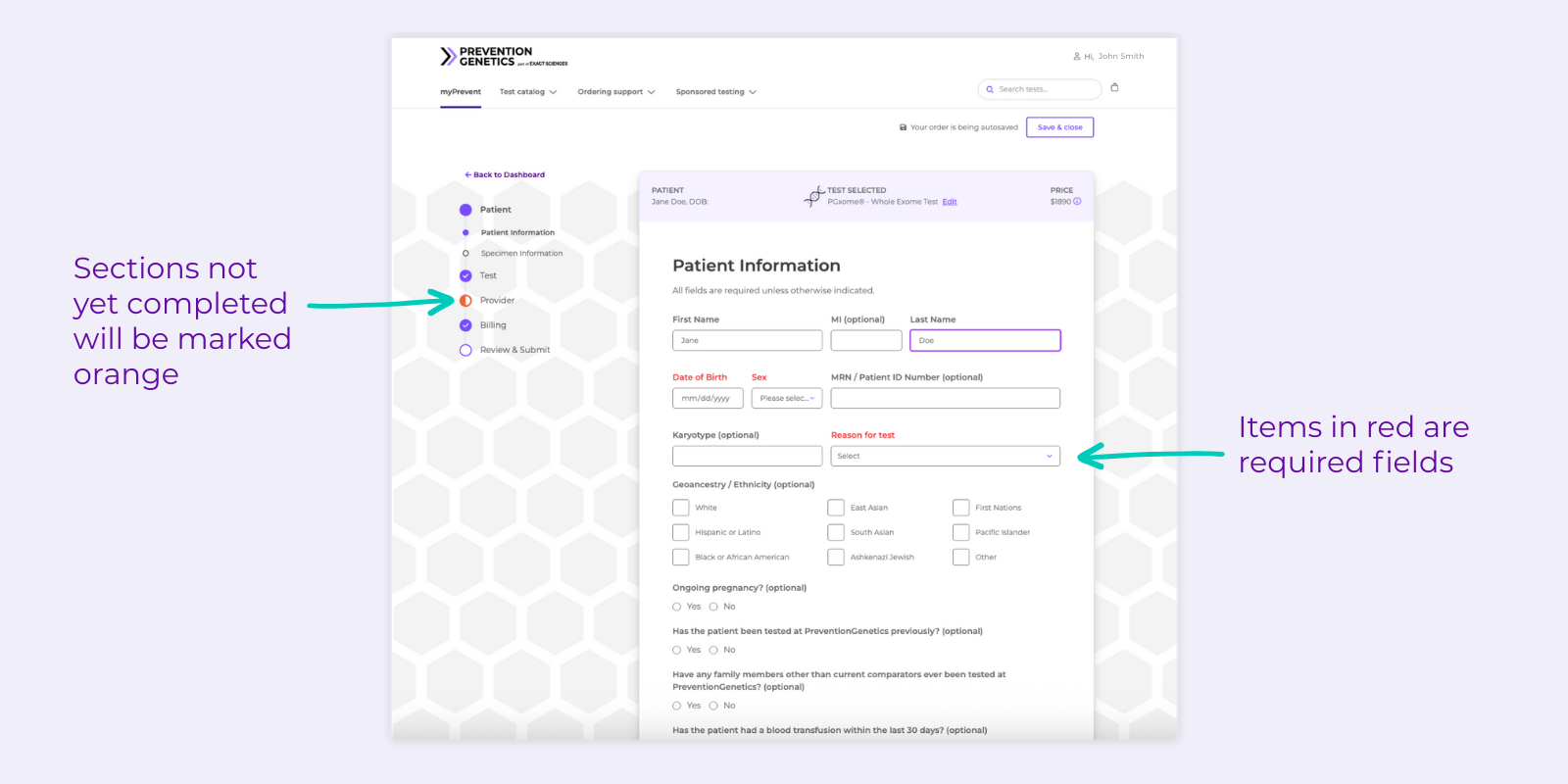
- Required fields are marked in red.
Patient Information: Fill out required fields. Specimen test kits can be ordered for patients and comparators here if needed.
Test: Select from available options, like STAT testing or Hold Testing for benefit investigation. It may include other sections based on the test—like Clinical Indications, Secondary Findings, or Clinical Information.
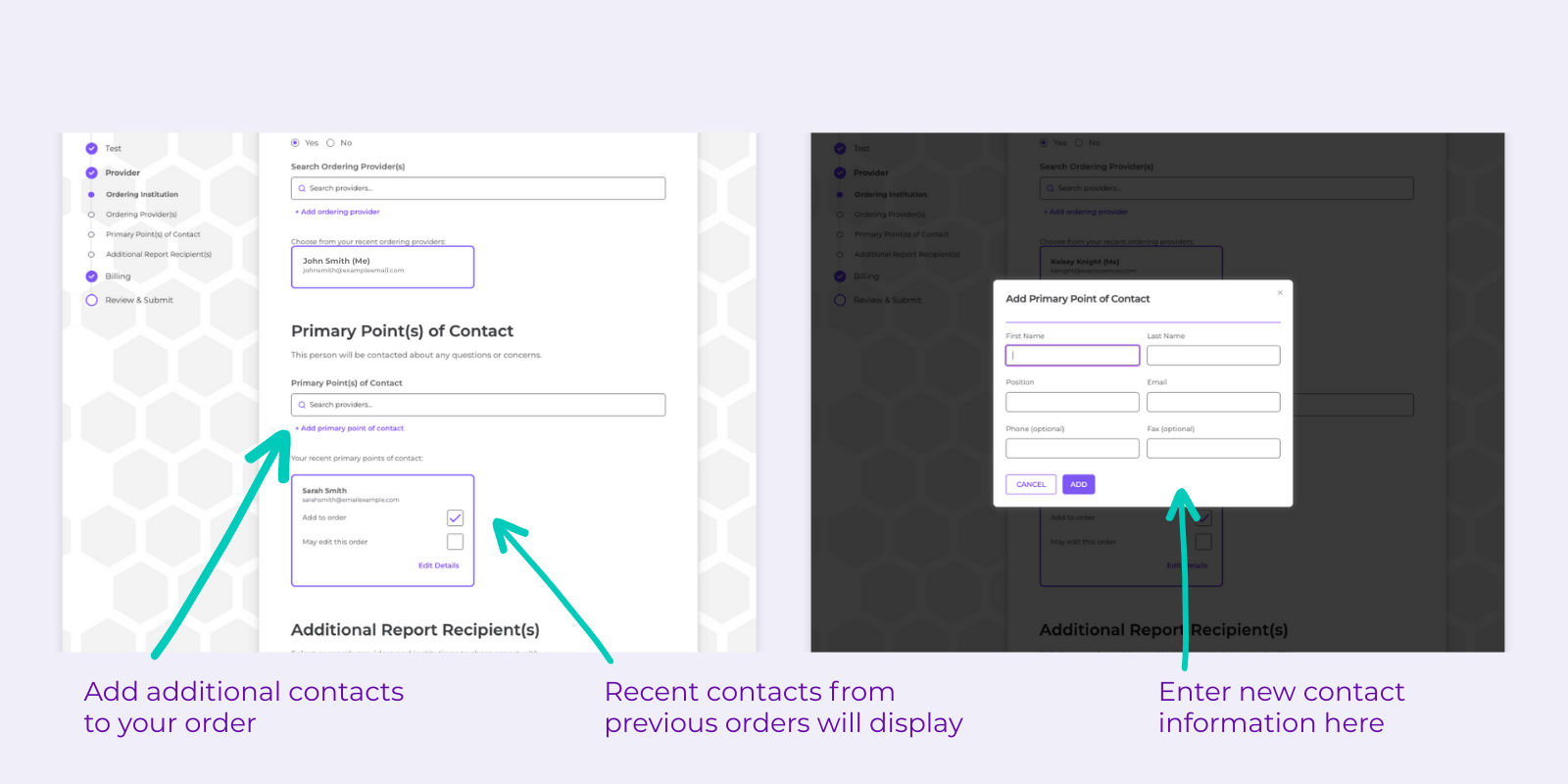
Provider Information: Include at least one Ordering Provider. New provider roles include Primary Contact and Additional Report Recipient. Allow additional recipients to edit the order as needed.
Billing: Institution auto-fills from Account Settings or can be added here. Select from Institutional, Insurance, or Self-Pay. Accounts based in Canada can select the Ministry of Health.
Order Summary: Download a PDF with the order details.


Report Sharing and Access: Roles Explained
There are several places in the portal where you can add people or assign roles. Each role has a specific purpose:
- Colleagues are added in Account Setting. They can view all shared orders.
- Ordering Provider(s) is the MD working with the patient. At least one Ordering Provider is required for each test order.
- Primary Point(s) of Contact will be contacted about any questions or concerns.
- Additional Report Recipients receive the report when testing is complete.
Tip: For Ordering Providers, Primary Point(s) of Contact, and Additional Report Recipients, selecting “May Edit This Order” checkbox grants editing access to those users for that specific test.
Get Support
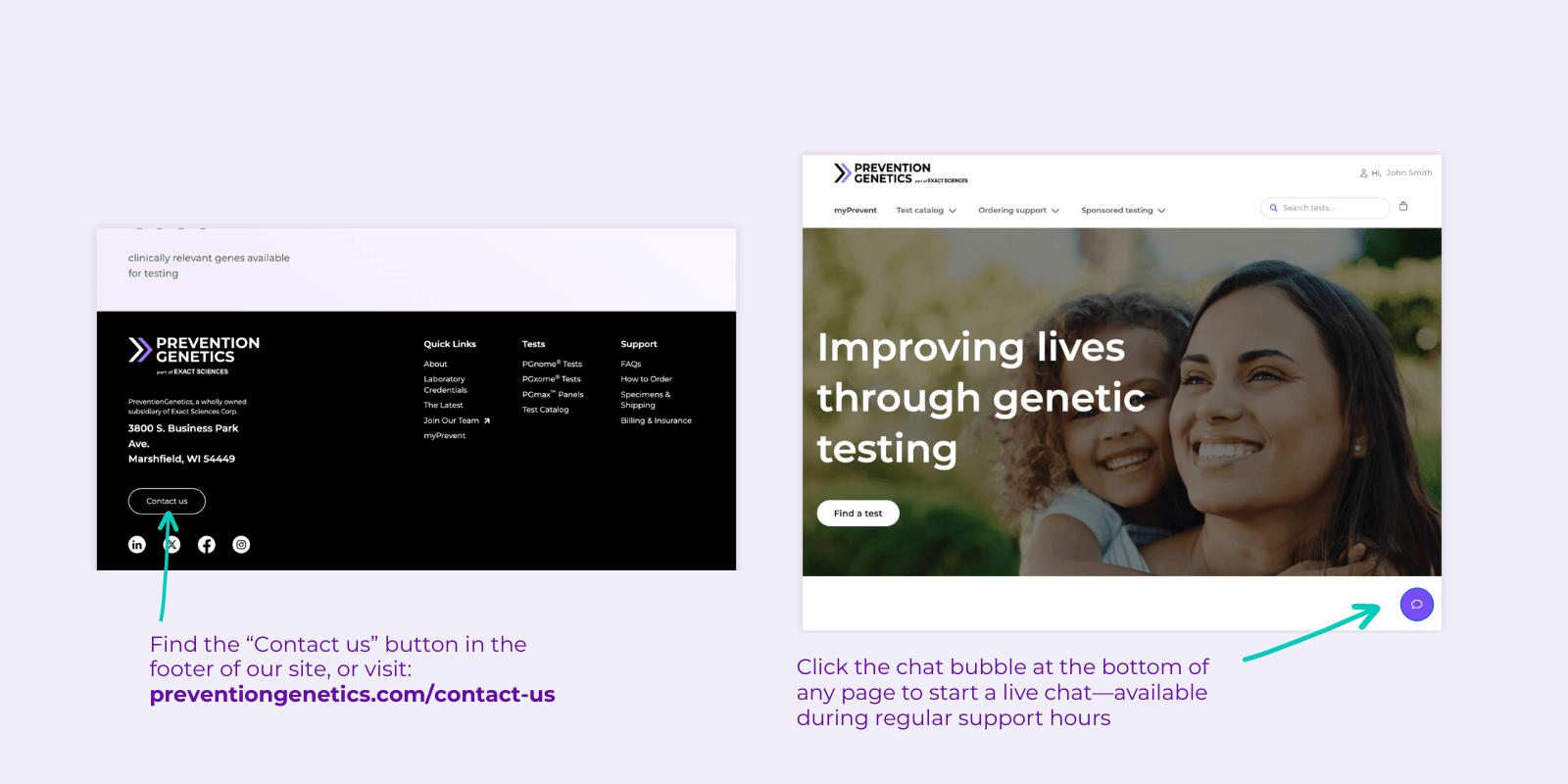
Need help? Use the Contact Us form or Chat Bubble.
Ready to Get Started?
Log in today and experience streamlined ordering and reporting with the myPrevent Portal.